Unlock Your Okta Account
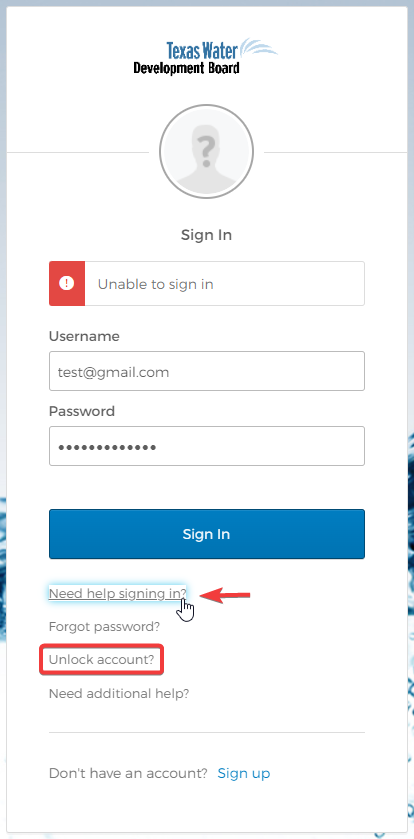
This how-to explains what to do if you get locked out of your Okta account. After five unsuccessful sign-in attempts, your Okta account will be locked. You will see the message Unlock account? and you will receive an email entitled, "Texas Water Development Board Application Portal - Okta Account Locked." Once your account is locked, you will not be able to log in to Okta without unlocking your account.
You can use the following workflows to unlock your Okta account:
- Unlock your Okta account via Email
- Unlock your Okta account via SMS
- Unlock your Okta account via sign-in page
If you have forgotten your password, please see the instructions for resetting your TWDB Okta password.
Please contact TWDB administrators if you need additional help.
Unlock your Okta account via Email
This is the easiest way to unlock your Okta account. As soon as Okta locks you out, you will receive an email entitled, "Texas Water Development Board Application Portal - Okta Account Locked."
- Click the Unlock Account link in the body of the email.
-
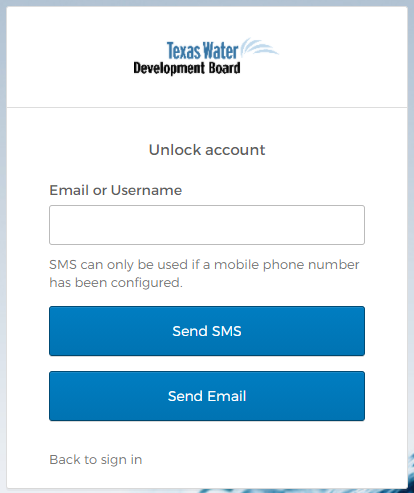
The Unlock account page displays. Enter your Okta email and click Next.
-
Select the Email option to unlock your Okta account via email.
-
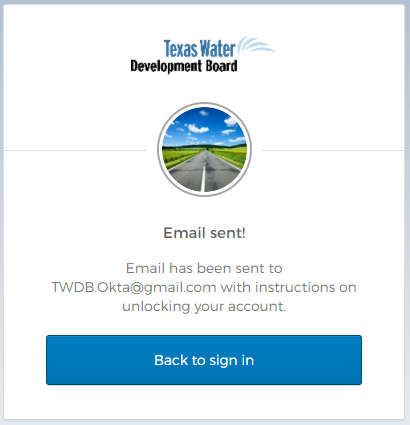
Click Send me an email.
- You should receive an email entitled, "Texas Water Development Board Application Portal - Unlock Okta Account."
- Click the Unlock Account link in the body of the email.
-
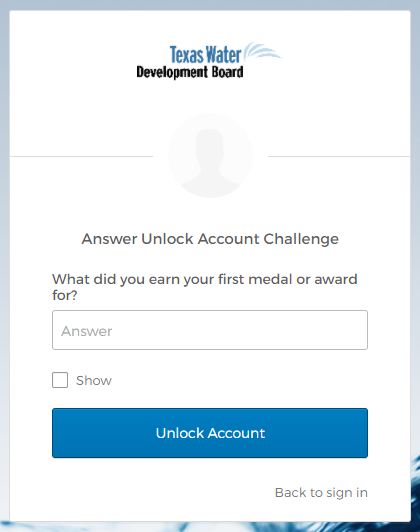
The link will take you to Verify with your Security Question. Enter the answer to your Security Question and click Verify. If you do not know the answer, please request help.
-
Enter your Okta Password and click Verify.
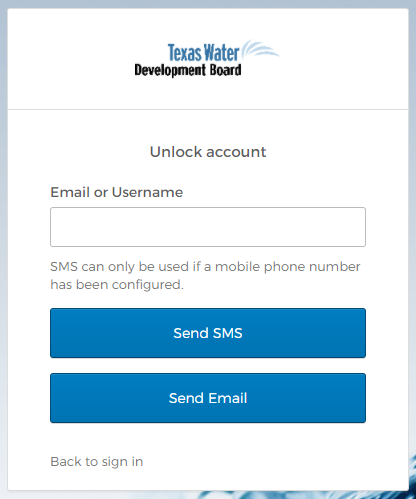
- You should be able to sign in successfully with your Okta username and password.
Note: If you do not receive an email please check your spam folder. If you still do not find the email, you may need to create your Okta account. Please request help if you are unable to receive emails from Okta.
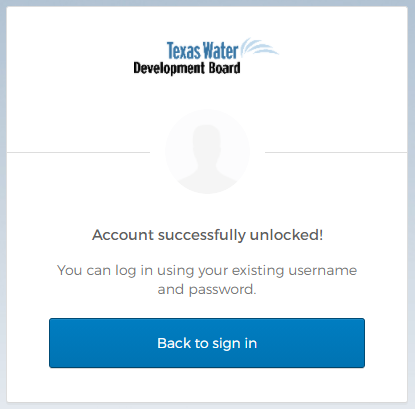
Unlock your Okta account via SMS
Once Okta locks you out, you will receive an email entitled, "Texas Water Development Board Application Portal - Okta Account Locked."
- Click the Unlock Account link in the body of the email.
-
The Unlock account page displays. Enter your Okta email and click Next.
-
Select the Phone option to unlock your Okta account via SMS.
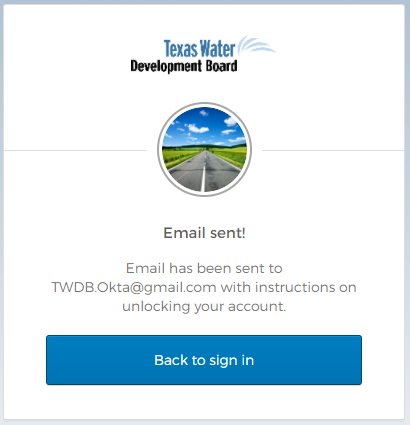
- Click Receive a code via SMS to send a text message to your Phone number.
-
Enter the six-digit verification code from the text message and click Verify.
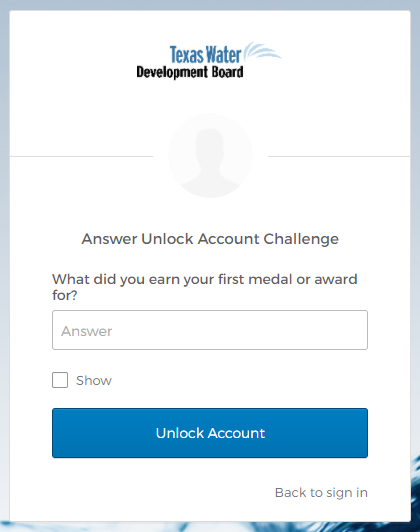
- Enter the answer to your Security Question and click Verify. If you do not know the answer, please request help.
-
Enter your Okta Password and click Verify.
- You should be able to sign in successfully with your Okta username and password.
Unlock your Okta account via sign-in page
- Go to TWDB Application Portal.
-
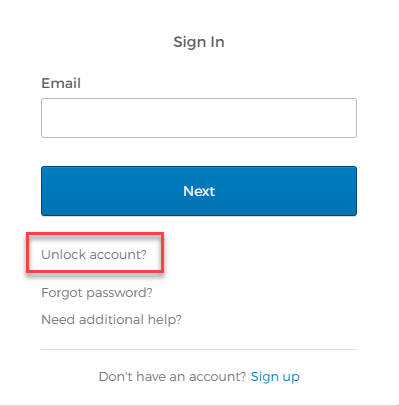
Click the Unlock account? link.
-
The Unlock account page displays. Enter your Okta email and click Next.
-
Select the Email option to unlock your Okta account via email.
-
Click Send me an email.
- You should receive an email entitled, "Texas Water Development Board Application Portal - Unlock Okta Account."
- Click the Unlock Account link in the body of the email.
-
The link will take you to Verify with your Security Question. Enter the answer to your Security Question and click Verify. If you do not know the answer, please request help.
-
Enter your Okta Password and click Verify.
- You should be able to sign in successfully with your Okta username and password.
Note: If you do not receive an email please check your spam folder. If you still do not find the email, you may need to create your Okta account. Please request help if you are unable to receive emails from Okta.